Analyze up to 10 inputs
Research up to 10 ASINs or 10 keyword phrases in a single batch.
Find the Amazon search terms worth targeting.
Start with a phrase or a competitor’s ASIN. Compare search volume and bids, then track where your product ranks.
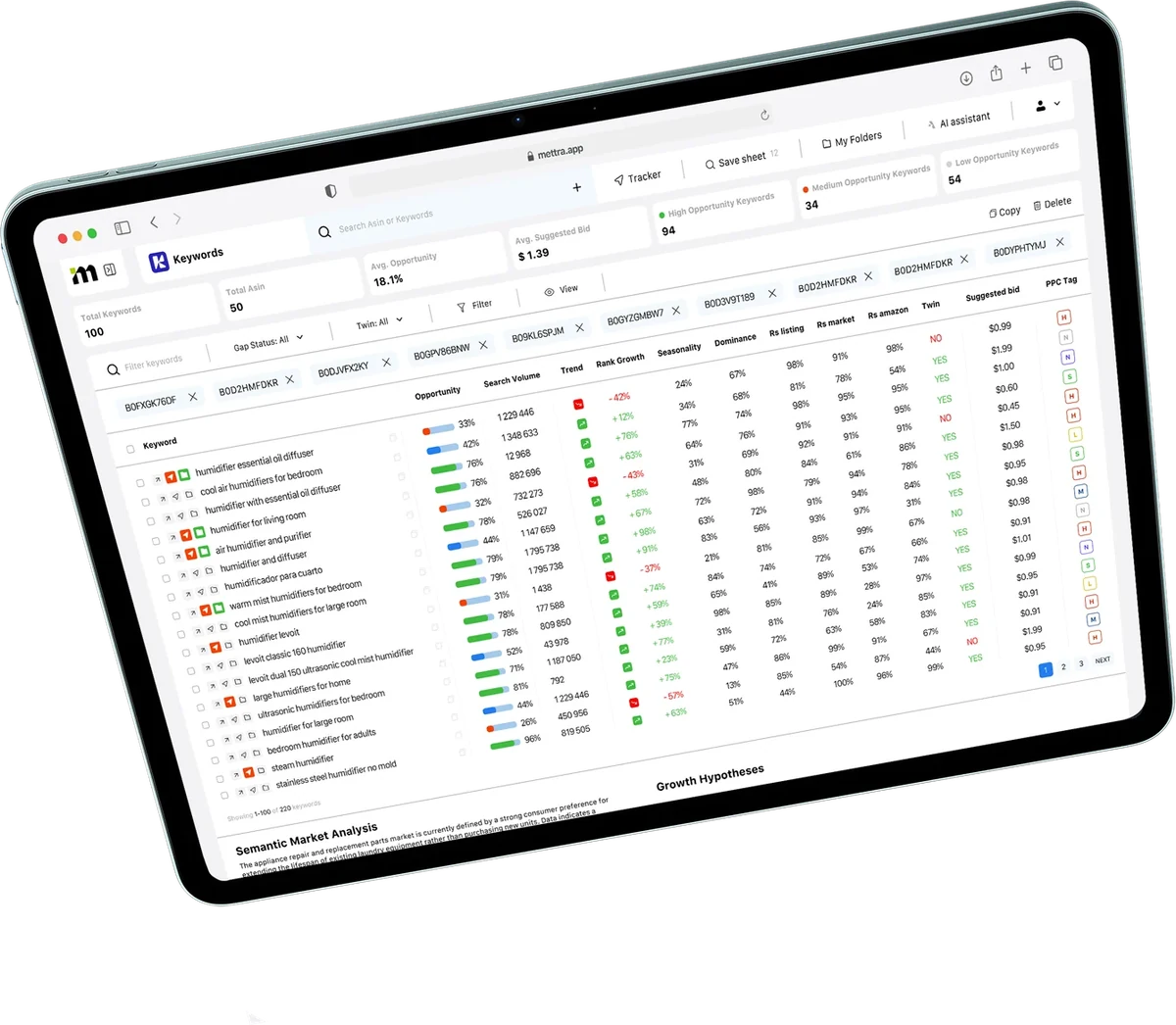
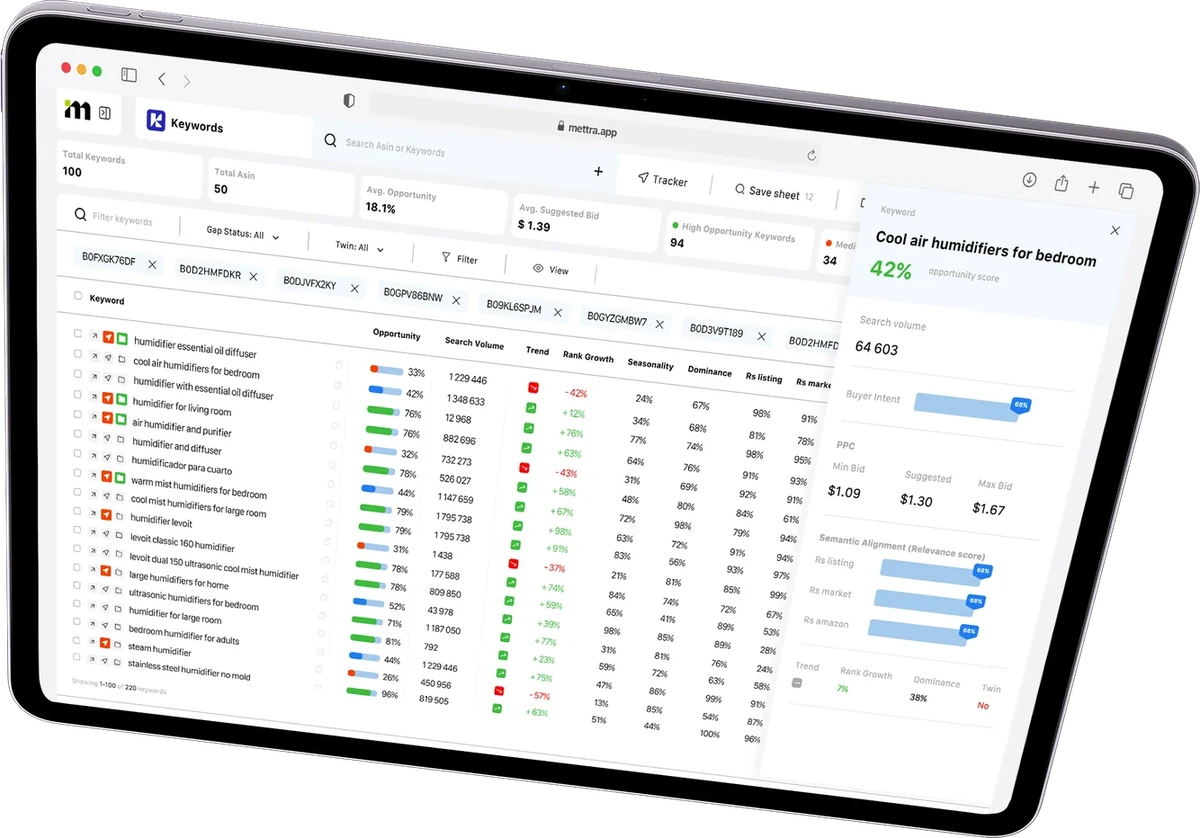
Find the terms shoppers use and decide which ones fit your listing or deserve a PPC test.
Find related search terms or use Reverse ASIN to see which queries a competing listing appears for.
Review estimated search volume, opportunity, trends and suggested bids before you choose what to target.
Track your product for selected terms and use rank history to see when its search visibility changes.

Switch to Reverse ASIN, filter by opportunity or select a keyword to explore its sample rank history.
Sample data · Amazon US
5 terms
| Keyword | Monthly search volume | Opportunity | Suggested bid in USD |
|---|---|---|---|
| 393,740 | Medium | $0.92 | |
| 34,161 | Medium | $0.89 | |
| 9,522 | High | $0.87 | |
| 2,460 | High | $0.81 | |
| 790 | Low | $0.85 |
No keywords match these filters.
yoga mat non slip
Organic position over 30 days · lower is better
The demo uses sample search metrics and illustrative ranking histories.
Watch a keyword search, open a term’s details and save research in a folder.
Open KeywordsResearch, track and organize the terms you use across listings and campaigns.
Previews use sample data.Research up to 10 ASINs or 10 keyword phrases in a single batch.
See where your product ranks for chosen terms and how its position changes over time.
Return to previous keyword and ASIN searches as you refine your shortlist.
Group terms by product, niche or campaign so you can reuse the list.
Test bids and conversion assumptions to estimate ad cost per sale and ACoS.
Use your keyword list in a listing brief, campaign plan or spreadsheet.
Mettra Academy shows how to read keyword metrics and build a shortlist for an Amazon product.
See what each step takes, from finding search terms to tracking positions.
| Research task | Manual research | With Mettra |
|---|---|---|
| Find relevant terms | Collect suggestions and enter searches one at a time. | Start with a phrase and compare related terms in one table. |
| Research competing listings | Review each product and record the phrases you find. | Use Reverse ASIN to analyze up to 10 competitor ASINs in one batch. |
| Prioritize keywords | Gather search volume and bids before comparing the results. | Review estimated volume, relevance, opportunity and bids together. |
| Track positions | Repeat searches and record where your product appears. | Track chosen terms and review the product’s ranking history. |
| Revisit a keyword list | Keep separate notes and files for each product. | Open past analyses and organize terms into project folders. |
| Use the list in a campaign | Copy terms into a sheet and estimate bids separately. | Export to CSV and use the PPC Calculator to test ad costs. |
It’s an Amazon keyword research tool for finding search terms, evaluating them and tracking how a product ranks.
Enter a competing product’s ASIN to see the search terms associated with that listing. Review terms that also describe your own product.
You can analyze up to 10 Amazon ASINs or up to 10 keyword phrases in a batch.
Yes. Add terms to Rank Tracker for the product you want to follow, then open a tracked keyword to review its organic and sponsored positions over time.
Start with terms that describe the product and how shoppers use it. Compare search volume, opportunity and relevance, then review the listings that appear for each term.
Yes. Group terms in folders by product, project or campaign, revisit previous analyses and export your keyword list to CSV.
Yes. Use the PPC Calculator to model cost per click, ad spend and ACoS based on your assumptions.
Explore related phrases and buyer-intent data to see how shoppers describe a product and its uses. Apply those insights to relevant product attributes and listing copy.
Open the Keywords workspace in Mettra on desktop, or use the Mettra Chrome Extension while researching on Amazon.
Start with a keyword or ASIN and build a shortlist for your Amazon listing.